
How to Implement an Approval Process in the Ticket Module Before Processing Tickets
We have a requirement to implement an approval process within the Ticket Module, where tickets must be reviewed and approved by a designated person or team before any further processing begins.
For example, when a user creates a ticket, it should remain in a pending approval status until the assigned approver reviews and approves the request. Once approved, the ticket can proceed to the next stage of the workflow. If the ticket is rejected, it should not proceed further and should follow the relevant rejection process.
We would like to understand whether this requirement can be achieved using the existing workflow configurations in Uniconnect CRM. If supported, we would appreciate guidance on how to configure the approval process, including the necessary status transitions, approval conditions, and actions to be triggered after approval or rejection.
3 Repliesto this discussion
The ticket approval requirement can be implemented by creating a separate CRM module named Approvals and establishing a relationship between the Approvals Module and the Ticket Module. This approach allows supervisors to review and manage ticket approvals through a structured process using the existing CRM module and workflow automation capabilities.
1. Configure the Approvals Module
Create a new CRM module named Approvals with the following fields to manage the approval process:
Approval Status Values:
Access Control:
Access to the Approvals Module can be restricted to supervisor users to ensure that only authorized personnel can review and update approval records.
2. Configure the Workflow in the Ticket Module
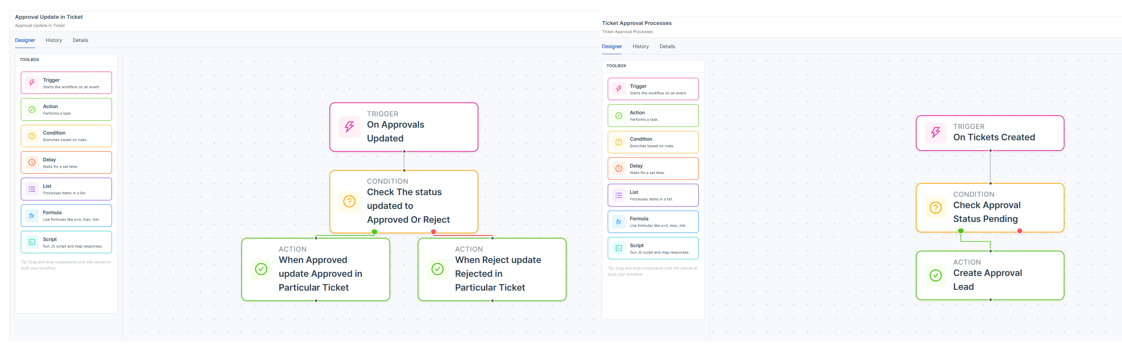
Create a workflow in the Ticket Module to automatically initiate the approval process when a new ticket is created.
The workflow should include the following nodes:
Step 1 – Ticket Created Trigger
Configure the workflow trigger to execute whenever a new ticket is created.
Step 2 – Condition Node: Check Pending Approval Status
Add a condition node to verify whether the ticket status is set to Pending Approval.
This condition ensures that only tickets requiring supervisor approval proceed through the approval workflow.
Step 3 – Create Action: Create an Approval Record
If the condition is satisfied, configure a Create action to automatically generate a new record in the Approvals Module.
Map the relevant ticket information, including:
Step 4 – Update Action: Update the Ticket Status
Configure an Update action to ensure that the original ticket remains in the Pending Approval status while awaiting the supervisor's decision.
3. Supervisor Review and Approval
Once the approval record has been created, the supervisor can access the Approvals Module and review the associated ticket through the Ticket ID relationship.
The supervisor can review the ticket details and update the Approval Status based on the decision.
Available actions:
4. Configure the Approval Decision Workflow
Create a separate workflow in the Approvals Module to automate the next steps based on the supervisor's decision.
Configure the workflow to trigger when the Approval Status is updated.
Condition 1 – Check Approval Status: Approved
If the Approval Status is updated to Approved:
Condition 2 – Check Approval Status: Rejected
If the Approval Status is updated to Rejected:
5. Expected Outcome
By implementing this approach, the CRM system will support a structured ticket approval process with automated record creation, supervisor-level access control, and workflow-based status updates.
This implementation provides the following benefits:
Overall, this approach enables the ticket approval process to be implemented using the existing CRM modules, relationship configurations, and workflow automation capabilities without requiring a completely separate approval management system.
you can implement a simpler approval process directly within the Ticket Module by adding an Approval Status field with values such as Pending Approval, Approved, and Rejected.
Configure field-level permissions so that only authorized users, such as administrators or supervisors, can edit the Approval Status field, while other users can view it without modifying its value. The approval process can then be managed directly through this field without creating a separate CRM module.
You can also configure workflows based on changes to the Approval Status field to control the ticket's subsequent processing.
If you require further guidance on configuring and managing field-level permissions, please refer to the following link: https://docs.uniconnect.ai/docs/enterprise/features/crm/permissions
Sign In to Reply
Enter your credentials to post a reply on this discussion.